

Add the hosted server to your assistant, sign in with your Uthana account, and ask for your first animation.
https://mcp.uthana.com/mcpNo install. Works with Claude, Claude Code, Codex, Cursor and any client that supports remote MCP servers. New accounts start with $5 of free credit.
Choose your assistant to see its steps. Every assistant uses the same server URL and the same Uthana sign-in.
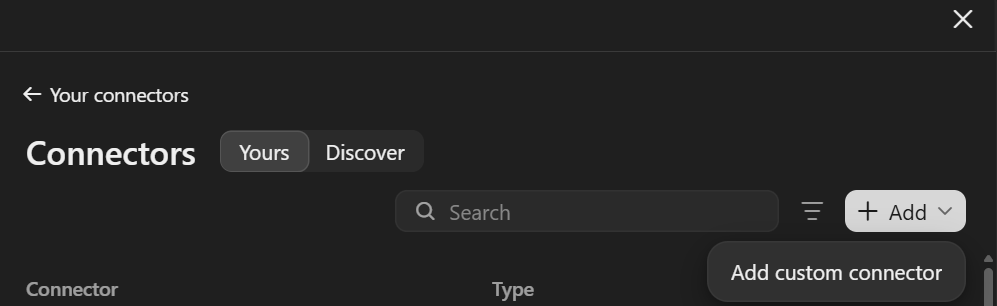 Add to Claude
Files you attach in a Claude chat don't reach Uthana. Upload them in the file portal and paste the upload details into the chat.
Claude can't fetch files from mcp.uthana.com with its default network settings. Open the download link it gives you in your browser, or allow mcp.uthana.com in Claude's network-access settings and ask for a fresh link to the same file.
Customize, then Connectors: select Uthana and choose Disconnect to sign Claude out (Connect signs you back in). To remove it completely, open the ⋯ menu next to Disconnect and choose Remove; this removes it from Claude desktop and claude.ai.
Next: check the connection ↓Run both commands in your terminal. The first adds Uthana for every project; the second opens the Uthana sign-in in your browser.
claude mcp add --transport http -s user uthana https://mcp.uthana.com/mcpclaude mcp login uthanaFinish the sign-in, then start a new Claude Code session. claude mcp list shows Uthana as connected; "Needs authentication" means the sign-in did not finish, so run the login command again. Inside Claude Code, /mcp then Uthana then Authenticate does the same. Add Uthana in one scope only; adding it twice creates two entries.
Asking Claude Code to set it up for you? Paste this: “Add Uthana's hosted MCP server with claude mcp add --transport http -s user uthana https://mcp.uthana.com/mcp, then run claude mcp login uthana and wait while I sign in with my Uthana account in the browser. When it reports success, tell me to start a new session.” Claude Code can't complete the sign-in on its own; you approve it in the browser.
Use the file portal and paste the upload details. To use files from your disk, run the local adapter instead.
claude mcp logout uthana
claude mcp remove uthana -s userCodex can download exported files for you after you approve its network access.
ChatGPT itself doesn't connect to MCP servers this way yet. These steps are for the Codex app.
Use the file portal and paste the upload details into the chat.
Plugins: select Uthana and remove it.
Next: check the connection ↓codex mcp add uthana --url https://mcp.uthana.com/mcpThe command opens the Uthana sign-in in your browser and reports "Successfully logged in" when you finish. If you close it before finishing, run codex mcp login uthana. Codex asks you to approve actions such as exports.
Use the file portal and paste the upload details. To use files from your disk, run the local adapter instead.
codex mcp logout uthana
codex mcp remove uthanaOpen Settings, choose Tools & MCP, then Add custom MCP, or add this to .cursor/mcp.json. Then choose Login next to Uthana.
{ "mcpServers": { "uthana": { "url": "https://mcp.uthana.com/mcp" } } }Use the file portal and paste the upload details into the chat.
Remove the uthana entry from Tools & MCP or from mcp.json.
Next: check the connection ↓Add a remote MCP server (Streamable HTTP) with the URL https://mcp.uthana.com/mcp and complete the Uthana sign-in your client opens. No API key or client ID is needed.
The technical reference lists what each assistant supports, plus sign-in details and recovery.
Next: check the connection ↓For clients that only run local servers, or when you want Uthana to read files from a folder on your computer. It uses an API key instead of a sign-in.
Ask your assistant for your balance. Connected: it reports your credit balance and allowances, and you are ready to generate. Connected but out of credit: it reports a zero balance; add credit in your account settings and the next prompt will run. Not connected: an "account linking is required" or sign-in error means the connector is installed but your account is not linked yet: choose Connect or Authenticate in your client, finish the Uthana sign-in, and ask again. If the Uthana tools are missing from the chat, restart the assistant once.
Show my Uthana account's available balance and allowances. Don't create or change anything.Two prompts, in order. The first generates the motion and uses credits (about $0.40); exporting it is free. Tar is one of the characters every account starts with, there for tests and demos; use your own character for production.
Use Uthana to estimate the cost of a 4-second wave on Tar, then generate it and show me preview frames.Export that Uthana motion as FBX at 30 fps.What to expect: the first prompt returns a price, then preview frames of Tar waving and a link that opens the motion in the Uthana app. The second returns the FBX, and your assistant can fetch the same motion as GLB or BVH. Pricing is the same as the app and API: pay as you go, no subscription.
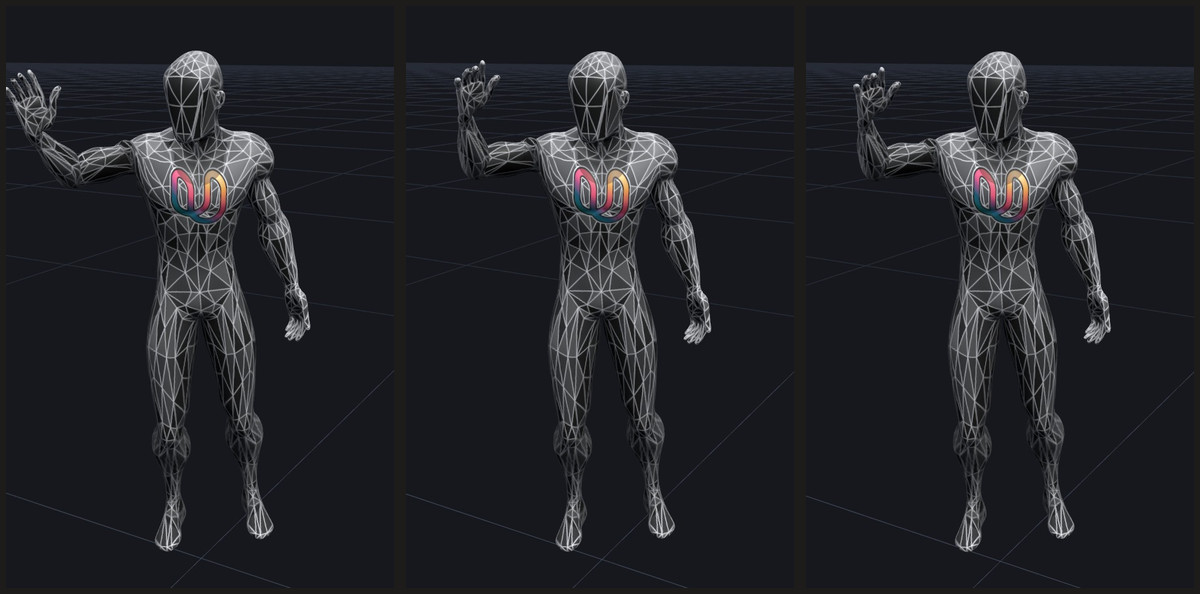
Your animation is saved: every motion you generate is stored in your Uthana account. The link in the reply opens it in the Uthana app, where you can play it, retarget it to another character and export it again later. The export itself comes back through your assistant, as a download link from the hosted server or as a file on disk from the local adapter. To reuse a motion, ask for it by name instead of generating it again.
Hosted: open the file portal at mcp.uthana.com/files, upload your video or character, copy the upload details it shows, and paste them into your assistant with your request. Clients that support attachments can hand files over directly. Local: put files in the folder you set as the input directory, and the adapter reads them from there. Downloads and previews stay private to your account.
Use Uthana to create a motion from the video I uploaded: PASTE-THE-UPLOAD-DETAILS-HERE. Then show me preview frames.
Check the status of my previous Uthana generation. If it completed, retrieve that motion and its preview.Anything else: email support@uthana.com or open an issue on GitHub.
It can see and create the characters and motions in your Uthana account, estimate costs, check your usage and export files. It cannot change your billing, your plan or your account settings.
Generating motion, creating characters, looping and stitching spend Uthana credit at the same rates as the app and API. Listing, cost estimates, retargeting to your characters and exports of motions you already own are free. Your assistant provider's own charges, if any, are separate.
Removing Uthana from your assistant doesn't delete your work. In Claude, use Disconnect to sign out. The local adapter uses an API key, which you can revoke in your account settings. The hosted MCP docs cover each assistant.
An alternative to the hosted server when you want it on your own machine, reading files from your disk, or when your client only supports local servers. It uses an API key instead of a sign-in and offers the same animation tools.
curl -fsSL https://raw.githubusercontent.com/Uthana/uthana-mcp/main/install.sh -o install.sh && sh install.shWindows (PowerShell):
Invoke-WebRequest https://raw.githubusercontent.com/Uthana/uthana-mcp/main/install.ps1 -OutFile install.ps1; powershell -NoProfile -ExecutionPolicy Bypass -File .\install.ps1Connect Uthana, describe a performance, and take the resulting animation into your game or simulation workflow.