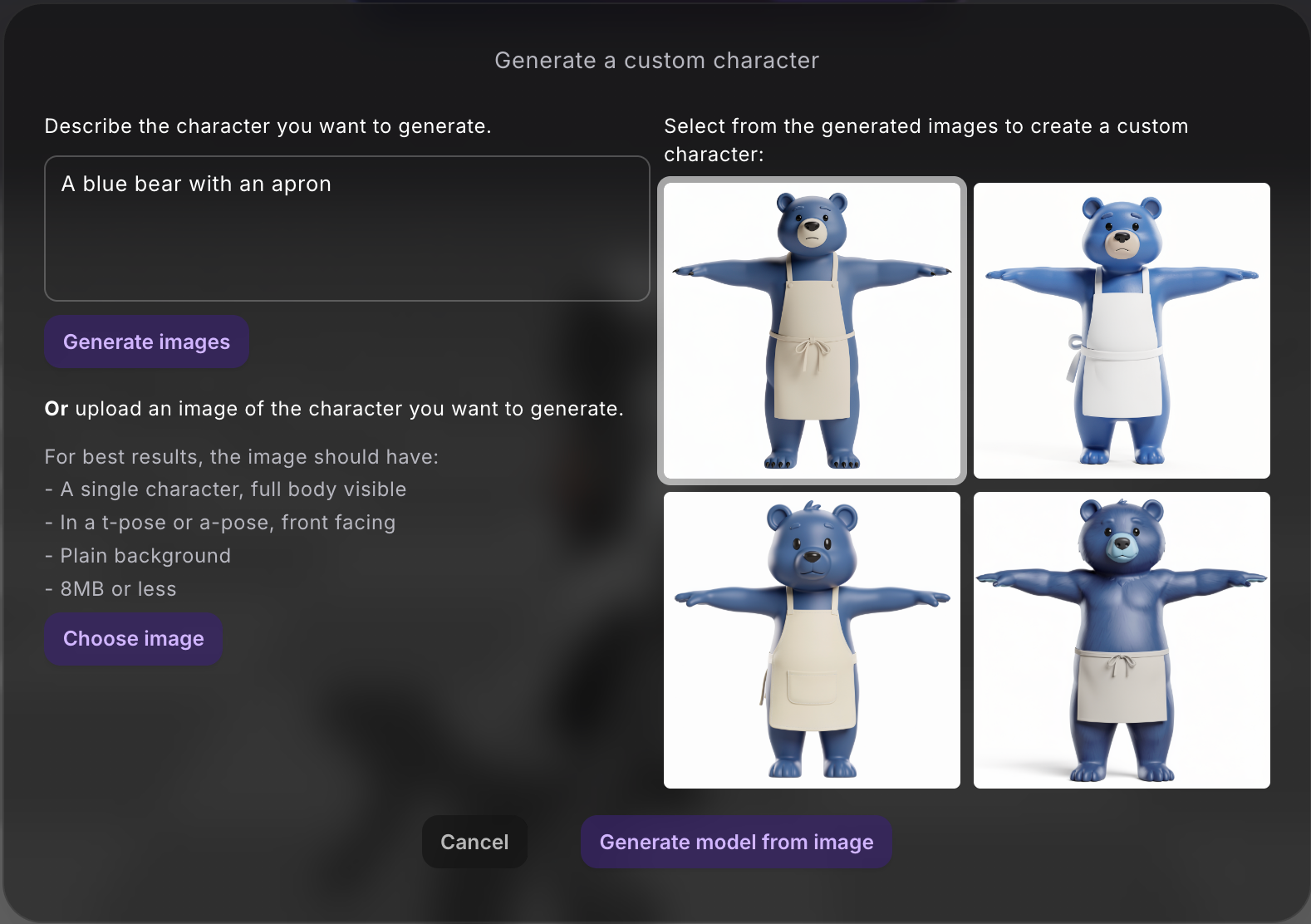
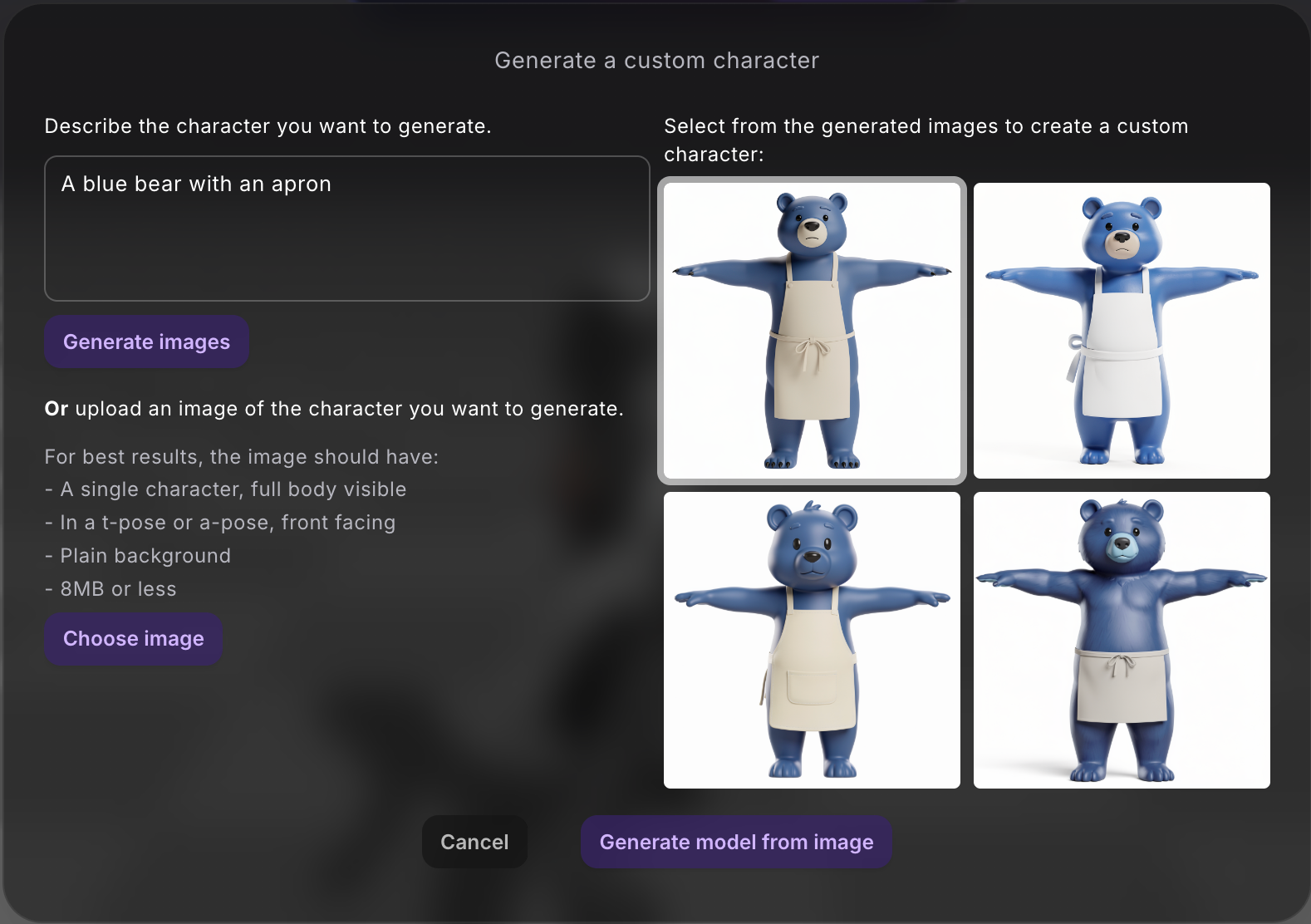
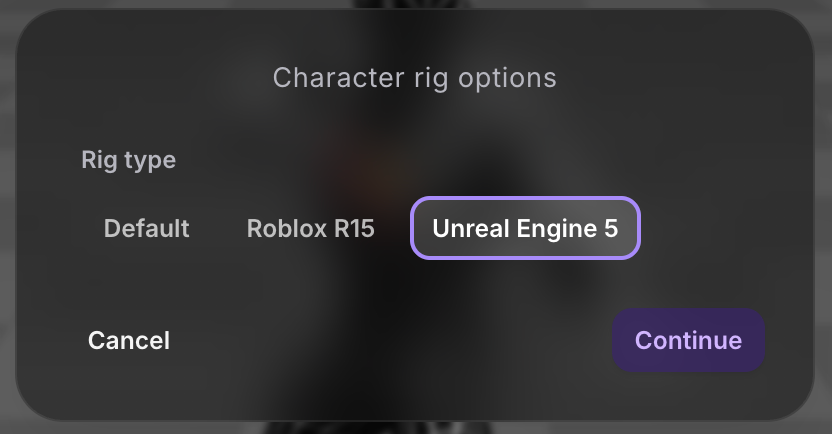
In the “Character rig options” dialog, select “Unreal Engine 5”.
How to replace the default character with your custom character
Open an Unreal project. I use the default Games Third Person starter project.
Open the Content Drawer. In All>Content>Characters>Mannequins>Meshes import your character FBX.
In the import settings, uncheck the “Import Only Animations”. In Skeletal Meshes>Common Skeletal Meshes and Animations, set Skeleton to None (we want to create a new skeleton).
On import, you should see multiple files being added into this folder, the important one is the Skeletal Mesh object. (Feel free to create custom folders to store materials, textures, etc.)
Set up the blueprint class:
Go to All>Content>ThirdPerson>Blueprints. We’re going to duplicate the default Blueprint Class “BP_ThirdPersonCharacter”. Right click and press “Duplicate”. I’ve named mine “BP_CustomCharacter”.
Double click to open the “BP_CustomCharacter” blueprint class. Under Details>Mesh, I’m replacing the default Skeletal Mesh Asset with my custom Skeletal Mesh Asset.
Under Details>Animation, set Anim Class to None.
On the top left of this BP_CustomCharacter window, click Compile, and then Save (floppy disk icon).
Close this window and in the main window, go to World Settings>Game Mode>Selected GameMode and drag and drop this new blueprint class into Default Pawn Class. If you play the level, you should see your character moving around the scene with no animation
Set up the IK rig:
In the Content Drawer, go to All>Content>Characters>Mannequins>Rigs. Duplicate the default IK Rig "IK_Mannequin". I have renamed mine to “IK_CustomCharacter”.
Double click to open the IK_CustomCharacter. In Details>Preview Mesh>Preview Skeletal Mesh, choose your custom skeletal mesh. Save before closing.
Set up the IK retargeter:
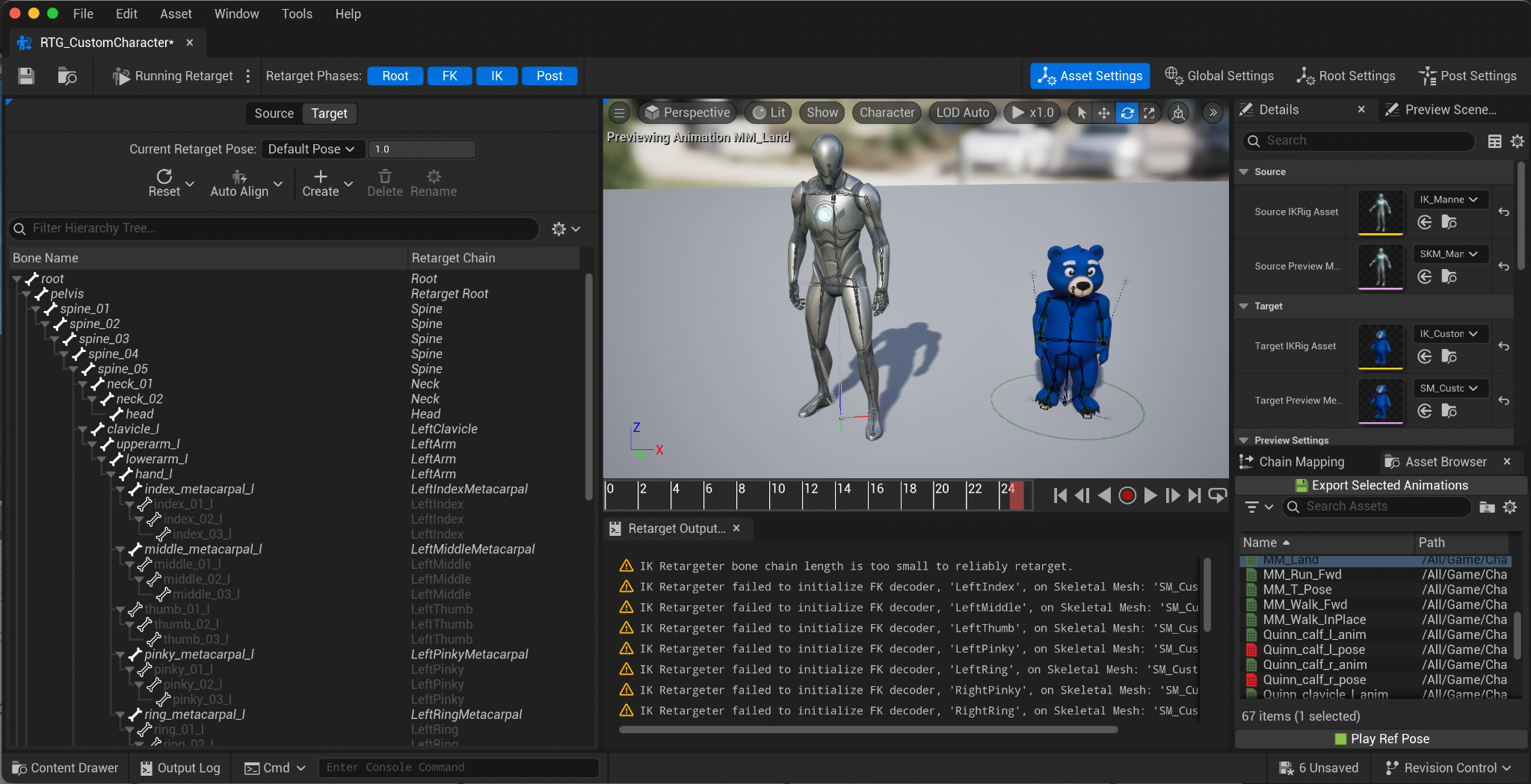
In the Content Drawer, go to All>Content>Characters>Mannequins>Rigs. Duplicate the default IK Retargeter “RTG_Mannequin”. Double click to open.
Keep the Source as is. Under Details>Target, set “Target IKRig Asset” to the IK Rig you just created.
To preview a retargeted animation, select an animation from the Asset Browser to make sure the animation plays well on the target character.
Save
Set up the custom Animation Blueprint:
In the All>Content>Characters>Mannequins>Animations folder, create a new folder to store your custom character’s animations (right click and select “New Folder”).
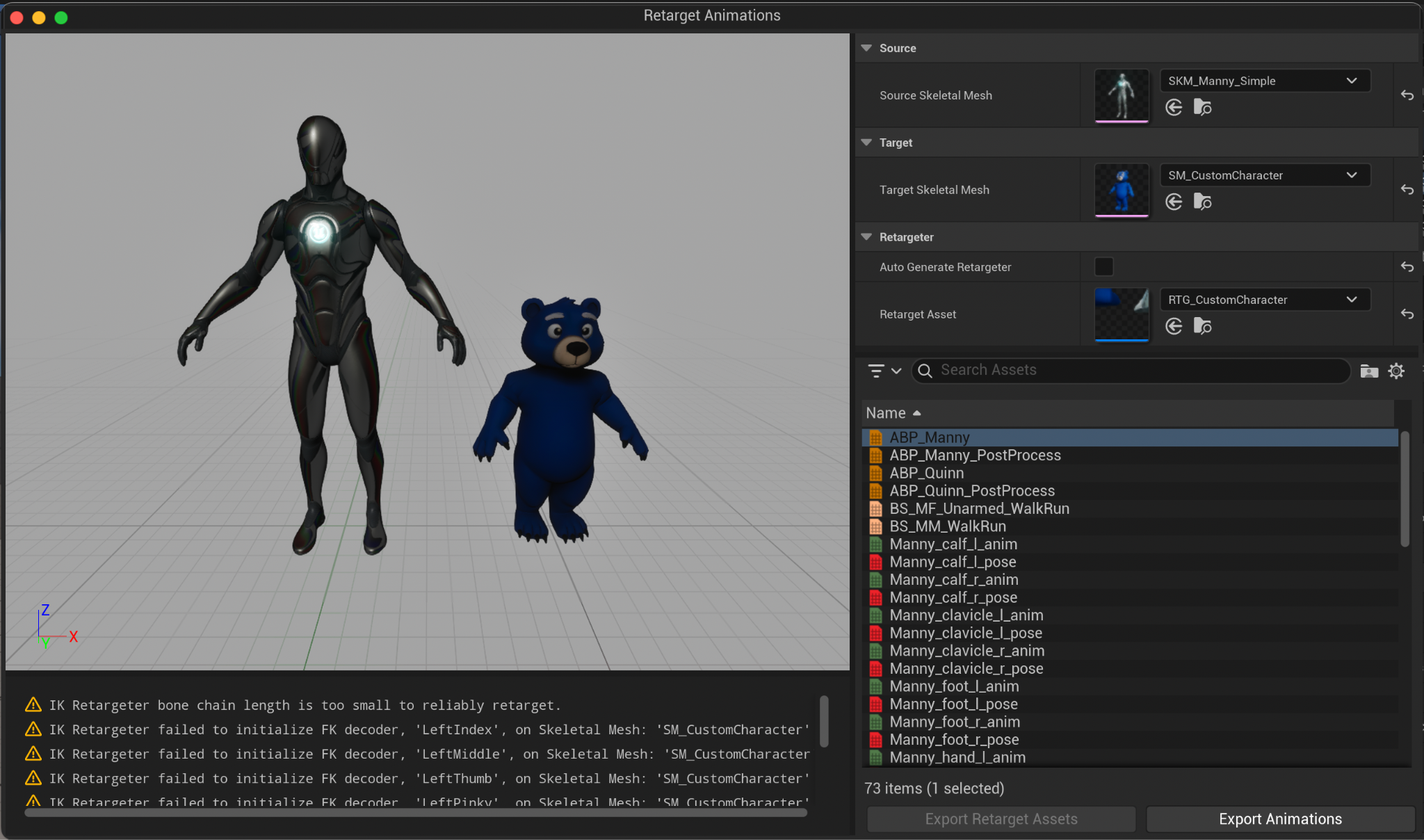
In the same directory, right click ABP_Manny Animation Blueprint and click “Retarget Animations”.
Set the Target>Target Skeletal Mesh to your custom character skeletal mesh.
Under Retarget, unselect “Auto Generate Retargeter” and select your custom character retargeter that you just created.
I use SKM_Manny_Simple as my Source Skeletal Mesh, and then select the ABP_Manny as the asset to retarget.
Choose the folder you created to export animations to. I added a Prefix to rename new assets. Feel free to do whatever you’d prefer for renaming.
You should see all of the animations now in your new folder.
There will also be an Animation Blueprint in this folder, likely called something with “ABP_Manny”. I rename mine to ABP_CustomCharacter and move it into the outer animations folder with the other Animation Blueprints.
NOTE: There may be a bug with the MM_Land animation. This is a common bug with retargeting in Unreal on this motion.
Double click to open this animation: Make sure “'Additive Animation Type” is set to “Local Space”. Change “Base Pose Type” to 'Frame from this animation', then change the “Ref Frame Index” to 26. Save
Now go back to your custom blueprint in the Content Drawer under All>Content>ThirdPerson>Blueprints. Mine is called BP_CustomCharacter.
Double click to open. Now under Details>Animation, set Anim Class to your new custom character blueprint.
You can view the character in the Viewport tab of this window.
Compile and Save
When you play the level, you should now have your custom character as the default character, and play the default animations seamlessly.
This is just how to set up a custom animation to play when a specific key is pressed
Generate a custom animation for your custom character in Uthana. Have a recorded performance? Use Video-to-Motion to reconstruct the movement, apply it to your compatible character in Uthana, and then follow the UE5 import steps below.
On download, select UE5 FBX
In your Unreal project, go to your folder with custom animations, or All>Content>Characters>Mannequins>Animations and import your animation FBX. In the import settings, under Common Skeletal Meshes and Animations, select your custom character skeleton (mine is called SK_CustomCharacter). Uncheck the Materials>Import Materials and Textures>Import Textures. Make sure the Animations>Import Animations is checked.
You should see the Animation Sequence imported. Double click to open the sequence. If you want root motion, Under Asset Details>Root Motion, check Enable Root Motion. Save.
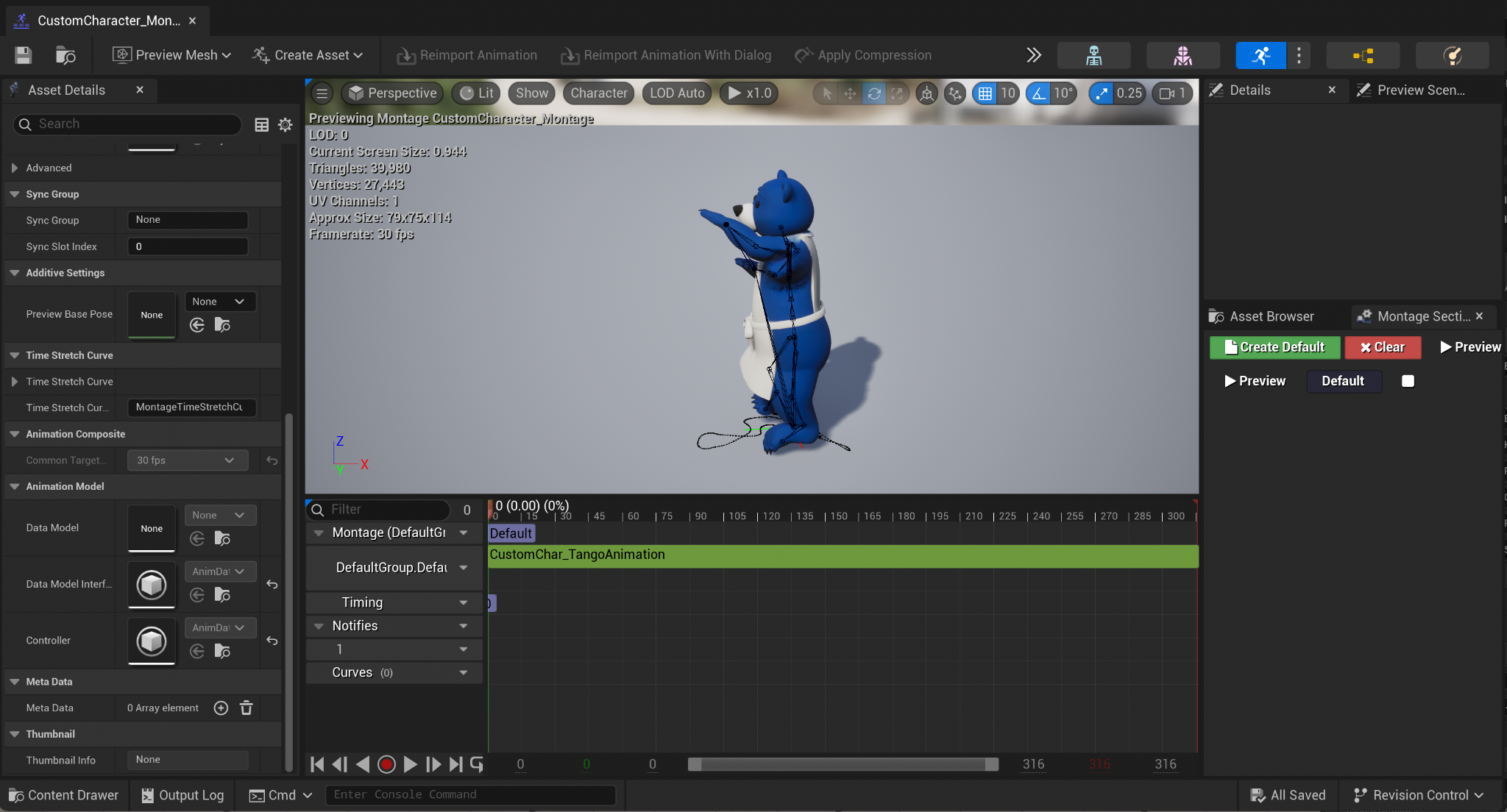
In the same directory, right click to create an Animation Montage. In Asset Details>Animation, set the Skeleton to your custom character Skeleton. In the Montage slider, drag and drop your custom Animation Sequence in the DefaultGroup.DefaultSlot. Save.
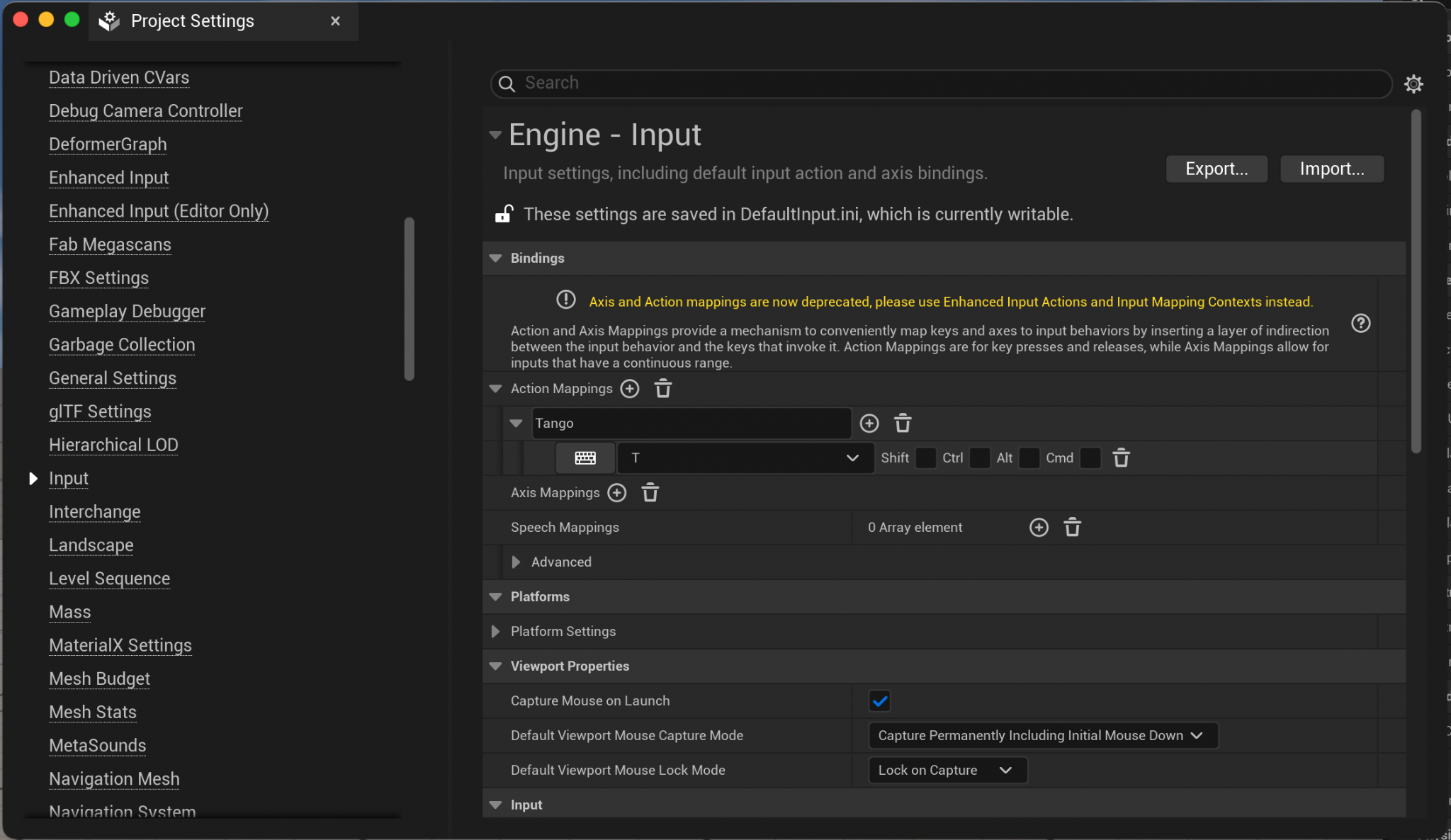
On the top menu bar, go to Edit>Project Settings>Input>Bindings and under Action Mappings, add a new Action Mapping.
Name your action mapping, and hook it up to a key of your choice. Since my animation is a tango motion, I chose “T”.
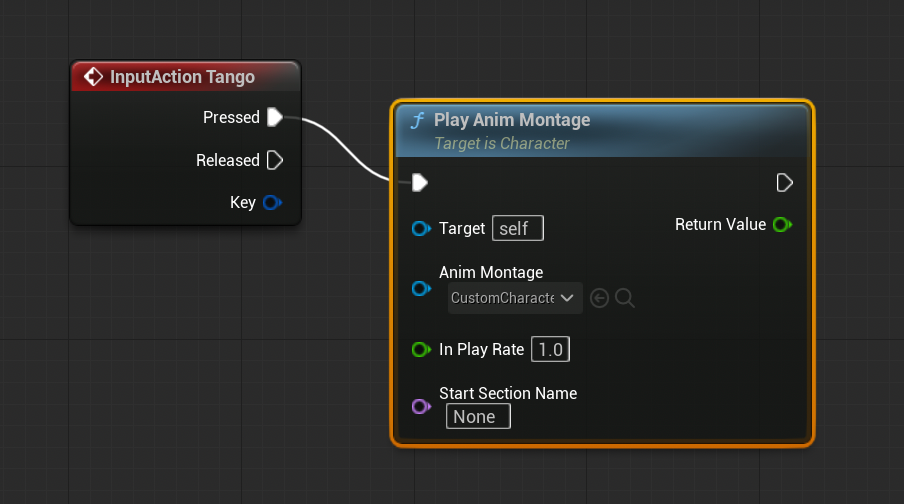
Then go to your Blueprint in the Content Drawer>All>Content>ThirdPerson>Blueprints for your custom character, and in the EventGraph, right click and search for your Action. Mine is called “Tango”, so I search “Tango” and see Input>Action Events>Tango. Click to add to Event Graph.
Click on the “Pressed” output and drag it out and search Animation Montage. You should see a node under Animation>Montage>Play Montage. Click to add to the event graph. Under the Anim Montage input to this node, select the animation montage you made for the custom animation.
Now when you play your scene, if you click on the key that you set up, you should see your custom animation playing!
How to replace default mannequin:
Add custom animation and link to a certain key press:
Ready to get started?
Start generating motion today, or work with us on a custom dataset, embodiment system, or simulation program.